
During FinCon 2016 in San Diego, I attended an excellent session on Friday held by Mike Stelzner from Social Media Examiner titled “How to track your Social Updates using Google Analytics“.
This session was focused on using a combination of UTM codes (Urchin Traffic Monitor) and Google Analytics to better understand where your traffic is coming from so you can focus your efforts on the actions that have the best ROI. And you can change your strategy on the areas that aren’t delivering results to get a better ROI.
Best takeaways from the session:
- UTM codes are the extra characters you see at the end of URLs
- You should start reposting the best of your old content with the added UTM codes
- Prove the value of your actions with Google Analytics & UTM codes
- Spot trends that affect your content
- Beware when using URL shorteners (yes=Twitter, no=Facebook)
You can go to the Google Analytics Campaign Builder website to create your code.
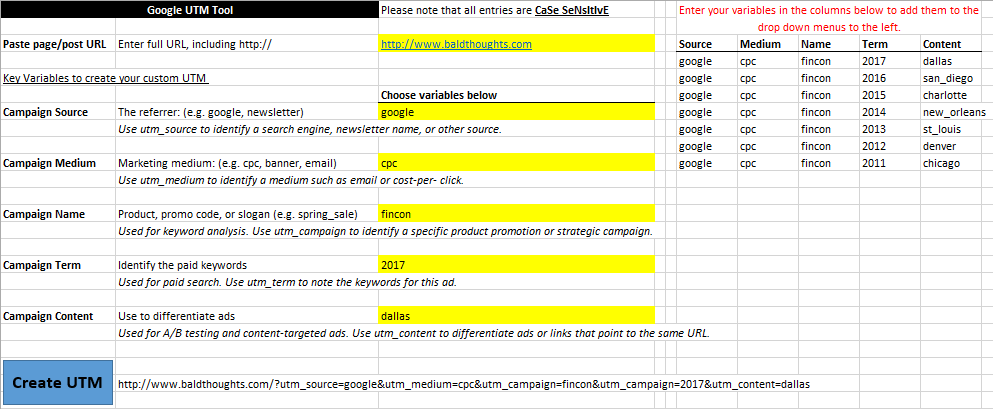
I built an Excel UTM Builder you can use anywhere
But, I’m a bit of an Excel Geek, so I created an Excel-based tool that allows you to work offline and re-use the same variables over and over again. The file is quick and easy to use.
- First off, create your variables in the columns on the right. As you add more, they will auto-populate into the drop-down menus in yellow.
- Enter your URL, select your Source, Medium, Name, Term, and Content from the drop-downs.
- Then click on the “Create UTM” button.
- Voila… your UTM link is ready to use and Google Analytics will automatically track the performance for you.
A picture of what the Excel file looks like is below, but you can download the Excel file from my DropBox.
Enjoy! If you have feedback, please let me know.